
Website Accessibility
Images of text are where text is contained within the image itself. Unfortunately screen readers cannot then read the text contained within the image.
Apart from checking with a Screen Reader such as JAWS or Google Select and Speak the easiest way to check if an image can be read is to click and drag the mouse over the text and see if it highlights.
For instance if you click and drag any of the text in the box below you will see that the text highlights. So this is a permitted Image of text. As long as it makes sense when read, it will be fine.
Why not try out our great Online Consultation System to let us know about your medical problem
Now try to click and drag the text in this image:
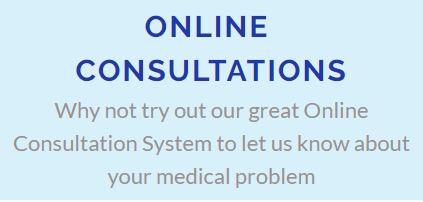
You will see the text does not highlight and so fails accessibility under WCAG 2.1 AA regulations. This is because the text is within the image itself.
Here's an example of a regular image that also cannot be used as it contains images of text:

The best way to to correct images of text is to delete the image, type up the text and re-add using the editor. You could then add a heading using your heading styles.
If there is part of the image you would still like to use, such as a logo, then crop this from the image (if you are licenced to do so of course) and add it to the article. If you do not have a copy of the image you could use the Snipping Tool (Windows > Accessories) to capture it.
Alternatively we recommend getting hold of a copy of Photoshop Elements which is available via Amazon, usually for well under £100. As well as editing your images, Photoshop Elements is useful for creating waiting room screen slides, summary care records card photos, newsletters, practice booklet etc. You don't have to be a graphic designer to use it either! It has a Basic Mode, and also a really useful Guided Mode for completing more complex edits, which it does for you! There's also an Expert Mode if you like to tinker.
There are some exceptions to images of text, such as logos etc., and can be found in the resources link below (W3 – Images of Text) where an (alt) alternative text tag can be used instead, but this cannot replicate text in the image, but only describe the image.
Also note that in the second image above, the text font is quite light and does not meet the contrast ratio required by WCAG 2.1AA regulations. This is about the only way a prohibited text colour can make it into our websites as all text colours and styles within the editor meet requirements. By replacing the image text with typed text the colour can be corrected.
If not using our Accessibility services, check all pages on your website and correct any images of text.
Understanding accessibility requirements for public sector bodies (.gov reference page)
How the accessibility regulations will be monitored and enforced (.gov reference page)
W3 - Images of Text (official read
Alternative Text for Images (.gov)
Accessible communication formats (amongst other formats there is good advice on adding images with text - or not as the case may be) (.gov)